
There is a lot of noise about integrating ServiceNow with Microsoft Teams.
On paper, it sounds great: fewer apps, less context switching, a unified experience. If you are a delivery manager or platform owner, the real question is simpler: What can my employees and agents actually do in Teams once this is turned on?
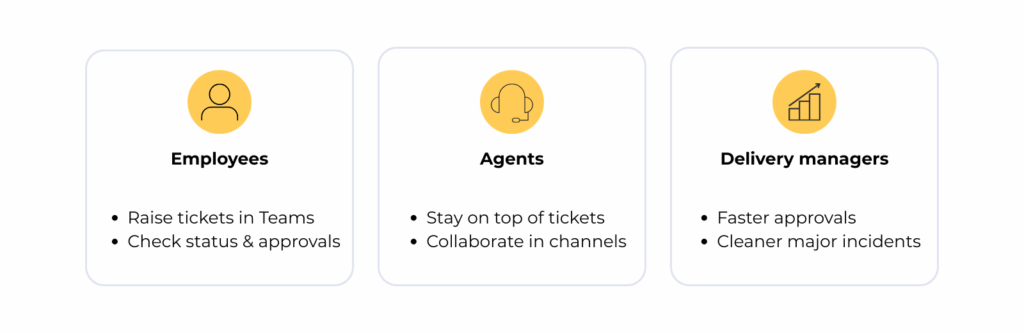
This article walks through that in plain language. The focus is on three groups:
• Employees who raise requests and incidents
• Agents who fulfil and support
• Delivery managers and platform owners
The core pieces of the integration
Most of the value comes from a small set of capabilities:
• Virtual Agent in Teams so people can chat with a bot to raise tickets, check status, and get help
• Employee Center or Service Portal as a tab so the portal appears inside Teams
• Notifications and approvals sent into Teams as adaptive cards instead of only email
• Link unfurling so that when someone pastes a ServiceNow address into Teams it expands into a record card with key details
Optional extras such as the Notify connector and the Microsoft Teams spoke add voice calls and richer automation, but the everyday value comes from these basics.
What employees can actually do in Teams
For employees, the value is straightforward. They stay in Teams and still get service.
1. Ask the Virtual Agent for help
Employees can open the Virtual Agent app in Teams and:
• Describe an issue in natural language
• Log an incident or service request
• Check the status of existing tickets
• Get answers to common questions using knowledge articles
If the bot cannot help, it can hand them over to a live agent via the Teams chat queue. This gives people a faster front door for simple, repetitive needs.
2. Use the portal inside Teams for light requests
You can pin Employee Center or your Service Portal as a tab in Teams so employees can:
• Browse categories and catalogues
• Submit simple requests
• View their open items and history
Complex multi-step requests still work best in a browser. Teams is ideal for shorter, focused requests where a small form and a few clicks are enough.
3. Respond to approvals in Teams
When you send ServiceNow approvals into Teams, approvers see an adaptive card with the key details. From that card, they can:
• Approve or reject with one click
• Add a short comment if needed
If they need to add more detail or attachments, they can open the full record from the same card. For many organisations, simply moving key approvals from Outlook into Teams removes days of silent waiting.
What agents can actually do in Teams
Agents are different. Their primary workspace is still ServiceNow. The Teams integration gives them a lighter way to stay on top of work and collaborate without living in a browser.
1. Use Teams as a lightweight workspace
When you send assignments and update notifications to Teams, agents receive adaptive cards with ticket details. From that card, they can:
• Open a record summary panel inside Teams
• View key fields such as number, short description, state, priority, assignment and service targets
• Add a comment or work note
• Take simple actions such as Assign to me, Accept, or Approve, where this has been configured
Teams does not replace Agent Workspace. It reduces the need to keep many browser tabs open for small updates and approvals.
2. Collaborate on tickets in a Teams channel
Link unfurling is one of the most useful parts of the integration.
When an agent pastes a ServiceNow record address into a Teams chat or channel, Teams recognises it and expands it into a card with the key details. That card gives everyone in the conversation:
• Immediate context in which the ticket is being discussed
• A quick link to open the summary panel in Teams
• A consistent way to anchor the discussion back to the record
If you use a swarming model or project squads, this is powerful. The team can talk in Teams, see the same ticket details at a glance, and still have everything linked back to the ServiceNow record. Many organisations also add a Share to Teams button on the form so an agent can send the record into a chosen chat or channel in one step.
3. Start chats and calls from the record
With the right plugins in place, agents can go further. From the incident or major incident record, they can:
• Start a Teams chat with the customer or other support staff
• Create a group chat or war room for a tricky issue
• When the Notify connector for Microsoft Teams is installed, trigger a conference call directly from the record
ServiceNow can log who joined, when they joined, and the call details. Many organisations also bring selected chat messages back into the ticket as work notes for audit and post-incident reviews. Collaboration happens in Teams, while the record of activity and decisions stays in ServiceNow.
During major incidents, Teams becomes the collaboration hub
Major Incident Management is where the integration starts to matter most.
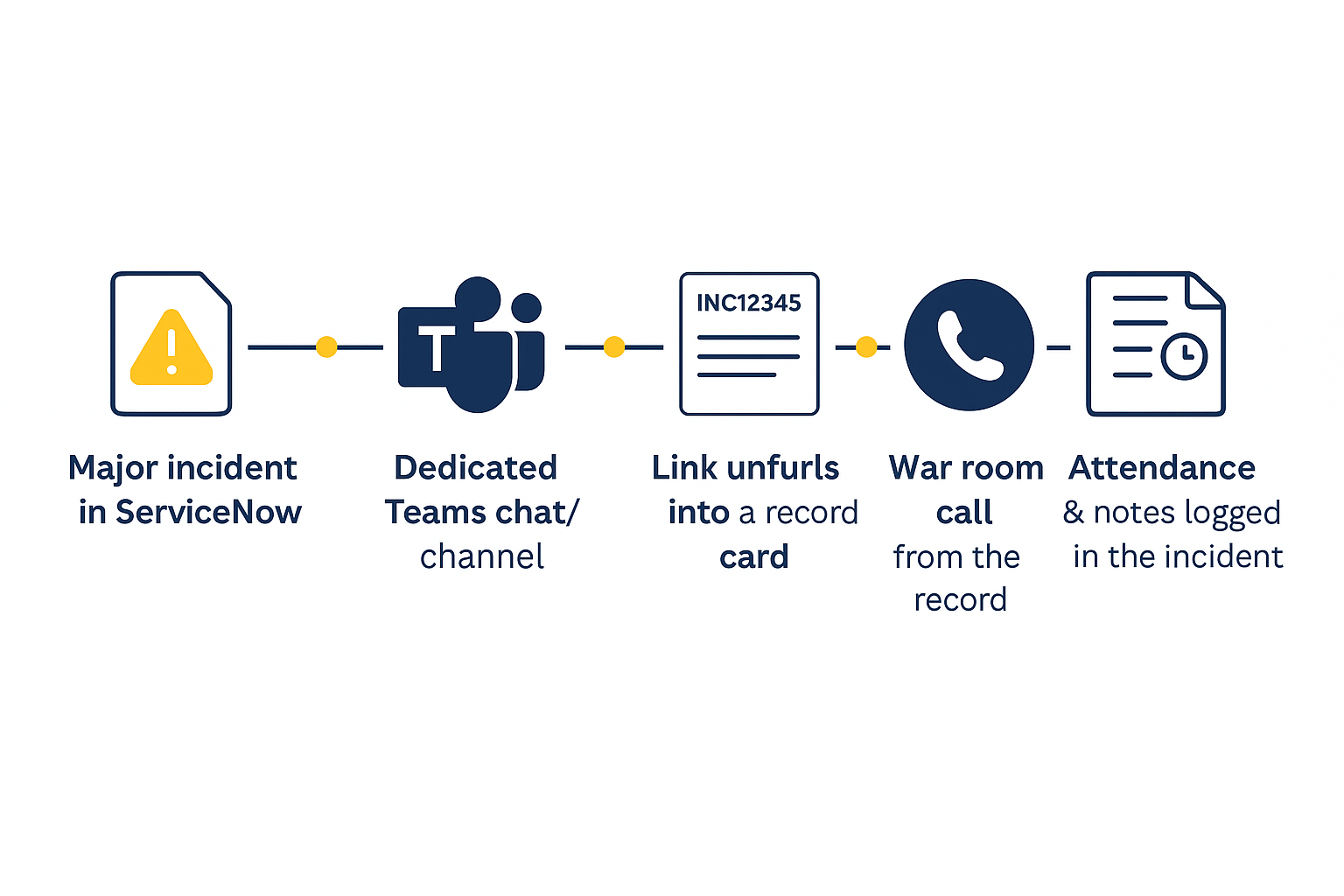
A common pattern is:
• A major incident record is created or promoted in ServiceNow
• A dedicated Teams chat or channel is created or linked
• The incident address is shared and unfurls into a card so everyone sees the same context
• A Teams call is started from the record
• Attendance, call details, and key chat content are brought back into the major incident for the timeline and for the review afterwards
In that arrangement, Teams is the live collaboration space, and ServiceNow remains the source of truth and the audit trail. Without this link, you usually end up doing a lot of manual copying, taking screenshots, and guessing when you try to reconstruct what really happened.
What delivery managers and platform owners gain
For delivery managers and platform owners, the benefits appear in slightly different ways.
• Faster approvals lead to shorter lead times and better service targets
• Less context switching for agents on simple work gives them more time for real diagnosis and fulfilment
• Cleaner major incident collaboration with one agreed channel and one record
• A foundation for later automation, such as alerts into specific Teams channels or workflows that create a war room for defined incident types
You do not have to switch on every feature at once. The point is that the integration gives you a path to grow into.
What this integration does not do
It is also worth stating clearly what the ServiceNow for Teams integration does not do.
It does not:
• Replace Agent Workspace as the primary fulfilment interface
• Replace your Service Portal for complex or high-risk requests
• Automatically make your Virtual Agent conversations helpful or relevant
• Fix poor approval design or unclear ownership
• Remove the need for proper onboarding, training, and communication
If your workflows are confusing in ServiceNow today, they will still be confusing when surfaced in Teams. The integration makes good design more accessible. It does not compensate for weak design.
Where to start without making it complicated
You do not need a large integration project to see value from bringing ServiceNow and Microsoft Teams together.
Most organisations begin with one or two focused use cases, for example:
• Sending important approvals to Teams instead of relying only on email
• Turning on Virtual Agent in Teams for common information technology requests
• Using link unfurling together with a simple war room pattern for major incidents
From there, you can observe what people actually use and grow the integration based on real behaviour rather than assumptions.
If you would like a second pair of eyes, I offer short, practical reviews that map out where Teams and ServiceNow can sensibly meet in your environment. This is also part of the Microsoft 365 Experience & Integration Assessment, which examines how to reduce noise and improve the experience for both employees and agents.